





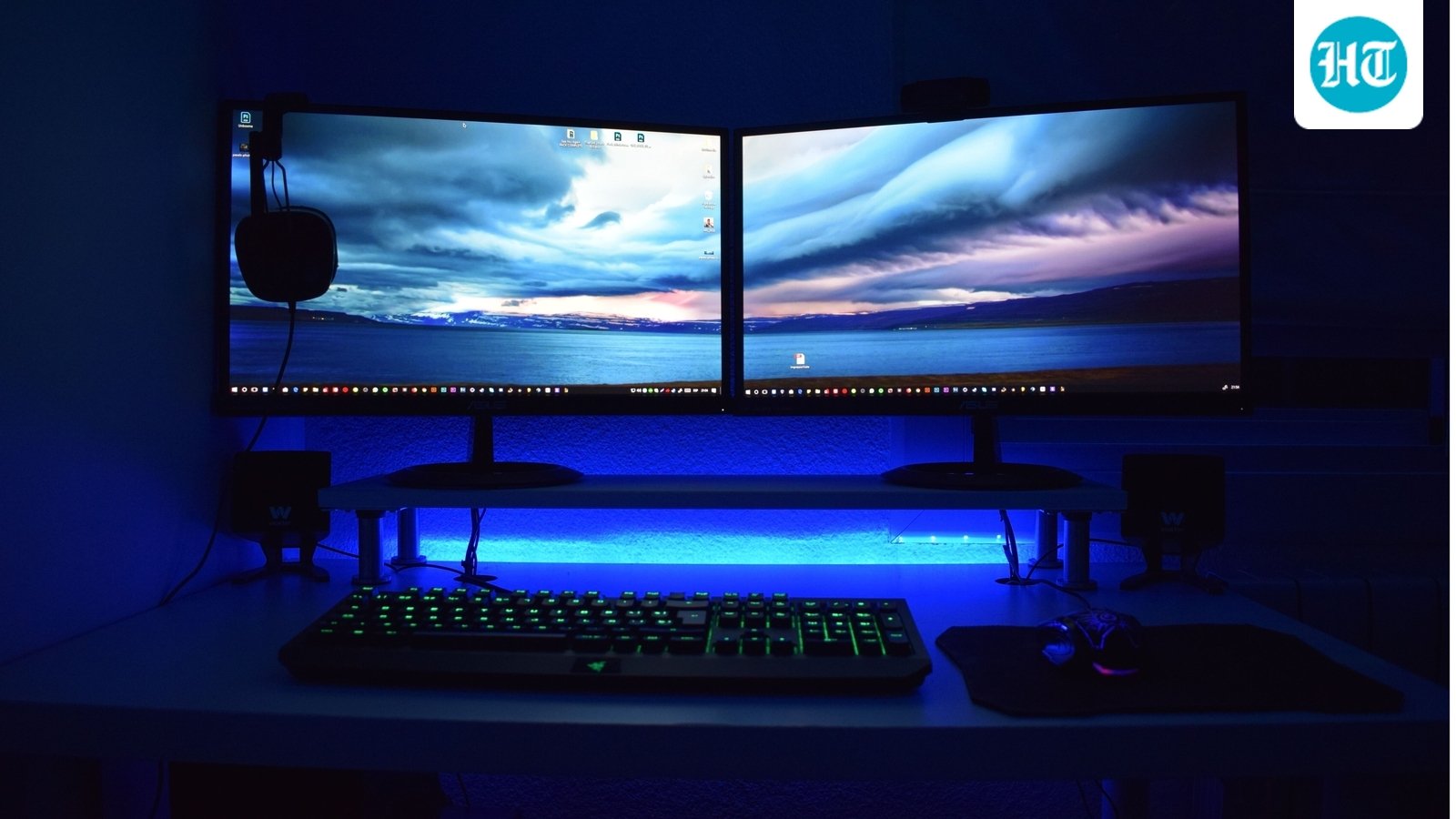
For a long time, I managed my entire workflow on a single monitor. Whether I was creating content, working with spreadsheets, streaming, or gaming after work, I simply made do with the screen I had. Adding a second monitor changed things more than I expected. It gave me extra space to work with and made my day-to-day tasks feel less cramped. I did not have to rethink my entire setup either. I simply added another screen to the setup I was already using. If you have been considering a similar change, the Amazon Great Freedom Sale 2026 could be a good time to make the switch, with several monitors available at discounted prices. In this guide, I look at what changed for me after adding a second screen and the monitor options worth considering.
Content creation: More room to create without constantly switching windows
A second monitor can be particularly useful when creating content. I can keep my main work open on one screen while using the other for anything I need to reference. When writing an article, for example, I can keep my draft on one monitor and research materials, notes or source pages on the other. This saves me from repeatedly switching between tabs and losing track of where I was.
The same setup works well for photo and video editing. I can keep the editing software on my primary screen while using the second display for reference images, tutorials or other material. This becomes even more useful when working with multiple files at once.
The extra screen also gives me a place to keep things I occasionally need without letting them take over my main workspace. Emails, social media, messages or a reference video can stay on the second display while I focus on the task in front of me. For content creators, that extra space can make a single-monitor setup feel considerably less restrictive.
Office work: Keep more information in view
A second monitor can make office work easier when a task involves multiple documents or applications. Instead of repeatedly switching between windows, I can keep the main task on one screen and supporting information on the other. This is particularly useful when working with spreadsheets, where I may need to compare figures, check another document, or refer to information online simultaneously.
The setup can also help with meetings. I can keep a video call open on one display while viewing notes, presentations, or documents on the other. This means I do not have to repeatedly minimise the meeting window or search through open tabs when I need information.
There is also a simple organisational benefit. With more screen space available, I can spread applications across the two displays instead of stacking everything on one screen. This reduces the need to constantly resize windows and makes it easier to keep track of ongoing tasks. For office work that involves research, spreadsheets, communication and frequent multitasking, the additional screen real estate can make the workflow considerably more manageable.
Tips for setting up a dual-monitor workspace
- Check your GPU and ports: Ensure your computer supports dual displays and has compatible HDMI or DisplayPort outputs.
- Match the monitors: Similar screen sizes, resolutions and pixel densities create a more consistent setup.
- Plan your desk: Ensure there is enough room for both screens, your keyboard, mouse and other accessories.
- Prioritise ergonomics: Keep both displays at a comfortable height and viewing angle.
- Use monitor arms: Adjustable VESA mounts can simplify alignment and free up valuable desk space.
- Manage the cables: Leave enough slack to adjust the screens without putting pressure on the connections.
- Test the setup: Try different positions before settling on the final arrangement.
- Check lighting: Avoid placing screens directly opposite windows to minimise distracting reflections.
Top Monitors to Consider on Amazon Great Freedom Sale 2026 for a Dual-Monitor Setup:
If you want to add a second monitor without spending too much, the Acer Nitro VG240Y X1 makes a strong case. Despite being the most affordable option here, it offers a 200Hz refresh rate, a 0.5ms response time and an IPS panel with 99% sRGB coverage. It is equally suited to everyday work and gaming, making it an easy choice for anyone building a dual-monitor setup on a budget.
Why should you consider buying this monitor?
The Acer Nitro VG240Y X1 is particularly appealing if you want a capable second screen without straining your budget. Its fast refresh rate, responsive IPS panel, good colour coverage and gaming features make it suitable for both productivity and entertainment.
The Dell S2725HSM is the kind of second monitor that can make a desk setup feel considerably more capable. Its 27-inch IPS panel gives you ample space for work, while 99% sRGB coverage delivers richer, more natural colours. The 144Hz refresh rate, 300-nit brightness, built-in speakers, and ergonomic stand further enhance its appeal.
Why should you consider buying this monitor?
The Dell S2725HSM works well as a second monitor if you want a larger screen without sacrificing gaming-friendly features. Its 144Hz refresh rate, ergonomic stand, built-in speakers and eye-comfort features make it a practical choice for work and entertainment.
The Lenovo Legion R27qe Gen 2 is a strong upgrade if you want your second monitor to do more than just add screen space. Its 27-inch QHD IPS panel delivers sharper images than Full HD, while the 200 Hz refresh rate keeps games and everyday scrolling smooth. With 99% sRGB coverage and a fully adjustable stand, it also fits comfortably into a work-focused setup.
Why should you consider buying this monitor?
The Lenovo Legion R27qe Gen 2 is a particularly capable second screen for anyone seeking both productivity and gaming performance. QHD resolution gives you more workspace, while a200Hz refresh rate and 0.5ms response time keep fast-moving content smooth. Its adjustable stand also makes it easy to position alongside another monitor.
The BenQ MOBIUZ EX271Q is one of the most versatile monitors on this list, especially for video editing and gaming. Its 27-inch QHD IPS panel covers 95% of the DCI-P3 colour gamut, giving editors a wider, more accurate colour range. At the same time, the 180Hz refresh rate and 1ms response time keep gaming smooth. Add 65W USB-C, KVM and an adjustable stand, and it is a capable all-rounder.
Why should you consider buying this monitor?
The BenQ MOBIUZ EX271Q is a strong choice if your second monitor needs to handle both creative work and gaming. Its 95% DCI-P3 coverage benefits video editing, while QHD resolution, an 180Hz refresh rate and 1ms response time make it equally capable for fast-paced games.
The ASUS ProArt Display PA278QV is built for creators who care about how their work looks. Its 27-inch QHD IPS panel covers 100% of the sRGB and Rec. 709 colour spaces, while factory calibration and Calman Verification ensure Delta E < 2 colour accuracy. That makes it particularly well-suited to photo and video editing, as well as graphic design.
Why should you consider buying this monitor?
The ASUS ProArt PA278QV is the clear choice for content creators who prioritise colour accuracy over gaming-focused specs. Its QHD resolution, 100% sRGB and Rec. 709 coverage, factory calibration, and Delta E < 2 accuracy make it well suited to editing photos, videos, and graphics.
1. What should you check before adding a second monitor?
Check whether your PC or laptop supports dual displays and has compatible HDMI or DisplayPort outputs. Also consider your desk space, monitor sizes, resolutions and refresh rates. Similar displays usually make the setup easier to align and more comfortable to use.
2. How do you set up two monitors without display or connection issues?
Connect both monitors securely, select Extend in your computer’s display settings, and arrange the screens to match their physical positions. If the second monitor is not detected, check the cables and ports first, then update your display drivers or use the system’s Detect option.
How Do These Monitors Stack Up?
Disclaimer: At Hindustan Times, we help you stay up-to-date with the latest trends and products. Hindustan Times has an affiliate partnership, so we may get a part of the revenue when you make a purchase. We shall not be liable for any claim under applicable laws, including but not limited to the Consumer Protection Act, 2019, with respect to the products. The products listed in this article are in no particular order of priority.


